Changing your voicemail greeting on an iPhone is a simple way to make your phone experience more personal and professional. You want to create a friendly personal message, a business voicemail greeting, or simply update an old recording, knowing how to change voicemail message on iPhone can help you manage your calls better.
Many iPhone users keep the default voicemail message without realizing they can customize it in just a few steps. A fresh voicemail greeting helps callers know they reached the right person and gives a better impression when you cannot answer.
In this complete guide, you will learn different ways to change voicemail messages on iPhone, fix common voicemail problems, record professional greetings, and understand everything about iPhone voicemail settings in simple language.
What Is a Voicemail Message on iPhone?
- A voicemail message is a recorded greeting callers hear when you cannot answer.
- iPhone allows users to create a custom voicemail greeting.
- The greeting can include your name, availability, or a personal message.
- A voicemail message helps callers leave important information.
- iPhone voicemail settings are available through the Phone app.
- Your carrier manages some voicemail features.
- Visual Voicemail makes voicemail management easier.
- You can replace the default greeting anytime.
- A customized greeting feels more professional.
- Personal voicemail messages create a better caller experience.
- Business users often update voicemail greetings regularly.
- Many people change greetings during vacations.
- A voicemail message can tell callers when you will respond.
- iPhone stores your recorded greeting with your voicemail settings.
- Your greeting plays before callers leave a message.
- You can record your voice directly from your iPhone.
- You can listen before saving the greeting.
- Voicemail greetings can be changed in minutes.
- The process works on most modern iPhone models.
- Updating voicemail keeps your phone communication professional.
How to Change Voicemail Message on iPhone Step by Step
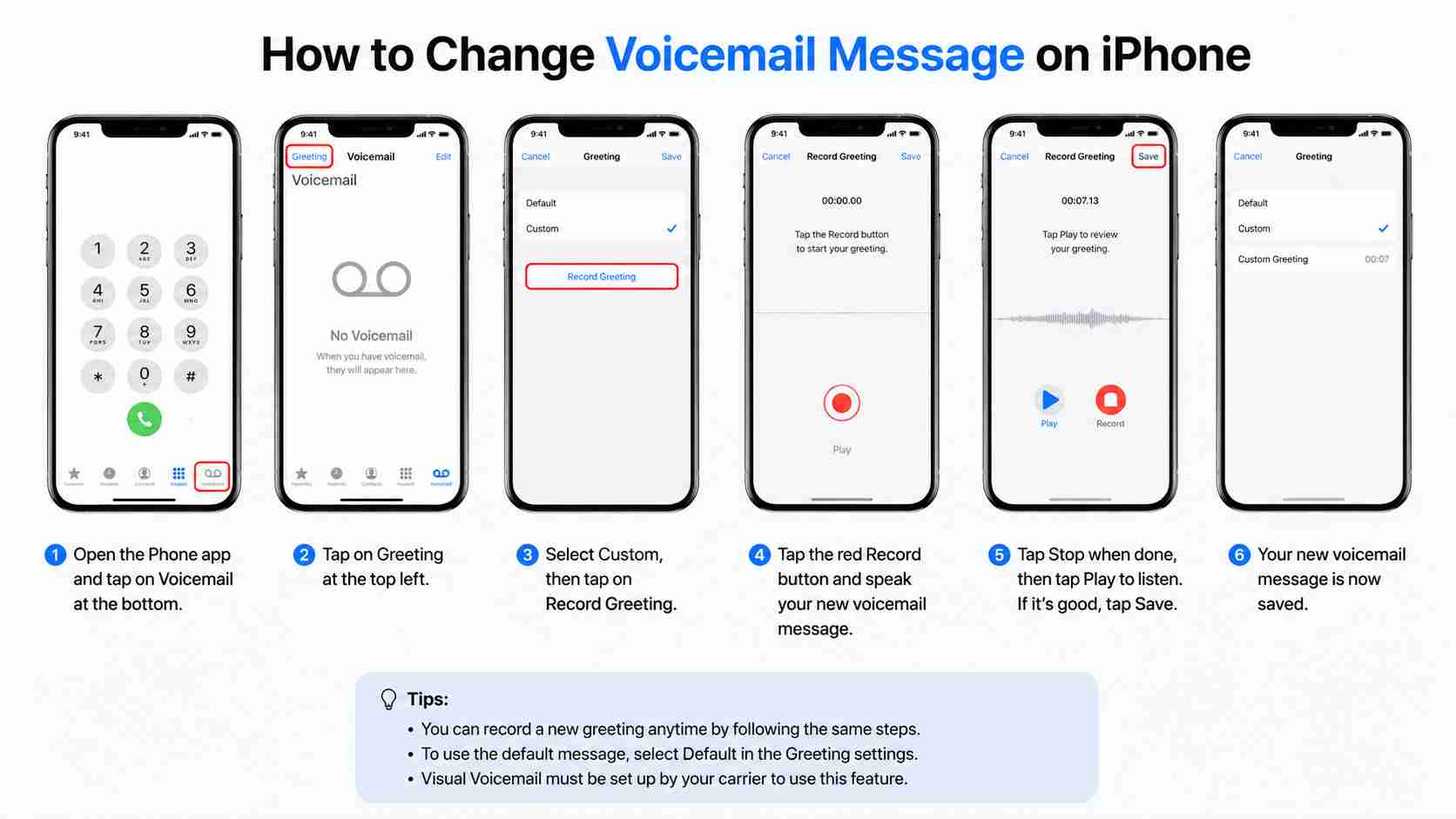
- Open the Phone app on your iPhone.
- Tap the Voicemail tab at the bottom.
- Select Greeting from the top-left corner.
- Choose the Custom option.
- Tap Record to create a new message.
- Speak your new voicemail greeting clearly.
- Tap Stop when you finish recording.
- Press Play to review your message.
- Tap Save when you are satisfied.
- Your new voicemail greeting will become active.
- Call your phone from another device to test it.
- Make sure your voice sounds clear.
- Record again if you do not like the result.
- Avoid background noise while recording.
- Keep your greeting short and simple.
- Speak slowly and naturally.
- Include your name if needed.
- Add instructions for callers if useful.
- Update your greeting whenever necessary.
- Enjoy your personalized voicemail message.
How to Record a Professional Voicemail Greeting on iPhone
- Start with a friendly introduction.
- Mention your name clearly.
- Keep the message between 10 and 30 seconds.
- Use a calm and professional tone.
- Avoid speaking too quickly.
- Thank callers for reaching out.
- Tell callers when you will respond.
- Keep background noise away.
- Record in a quiet room.
- Smile while speaking to sound warmer.
- Avoid unnecessary personal details.
- Make your message easy to understand.
- Use simple words.
- Sound confident and polite.
- Avoid jokes in professional greetings.
- Update the message when your schedule changes.
- Check audio quality before saving.
- Practice before recording.
- Keep the message welcoming.
- End with a clear invitation to leave a message.
Best Personal Voicemail Message Examples for iPhone
- Hi, you’ve reached me. I can’t answer right now, but please leave a message.
- Hello, thanks for calling. I’m unavailable at the moment. Please leave your name and number.
- Hi, you reached my voicemail. I’ll get back to you as soon as possible.
- Thanks for calling. I’m away from my phone right now.
- Hello, I missed your call. Please leave a message after the tone.
- Hey, I cannot answer right now, but I would love to hear from you.
- You’ve reached me. Leave a message and I’ll return your call soon.
- Thanks for reaching out. I’ll contact you when I’m available.
- Hello, please leave your message and I’ll respond shortly.
- Sorry I missed your call. Talk to you soon.
- Hi, I’m not available right now. Leave a message anytime.
- Thanks for calling my iPhone voicemail.
- I’m away from my phone but will reply soon.
- Your call is important. Please leave your details.
- I’ll get back to you as soon as I can.
- Thanks for your patience. Leave a message after the beep.
- I cannot come to the phone right now.
- Please share your name and reason for calling.
- I appreciate your call and will respond soon.
- Have a great day and leave your message.
Professional Voicemail Greeting Examples for Business iPhone Users
- Thank you for calling. Please leave your name and contact information.
- You have reached my business voicemail.
- I am currently unavailable but will return your call soon.
- Thank you for contacting us.
- Your message is important and will be answered shortly.
- Please leave details about your request.
- We appreciate your call and support.
- Our office will respond as soon as possible.
- Thank you for your patience.
- Please leave a detailed message after the tone.
- I am away from my desk at the moment.
- Your call has reached the correct department.
- We will contact you during business hours.
- Thank you for choosing our services.
- Please include your phone number for a faster response.
- We look forward to speaking with you.
- Your message has our full attention.
- We appreciate you taking the time to call.
- Someone from our team will respond soon.
- Thank you for connecting with us.
How to Change Voicemail Message on iPhone Without Visual Voicemail
- Open the Phone app.
- Call your voicemail number.
- Follow your carrier instructions.
- Enter your voicemail password.
- Choose the greeting option.
- Select the option to record a new greeting.
- Record your new message.
- Save the recording.
- Listen to the confirmation.
- End the voicemail call.
- Test your new greeting.
- Contact your carrier if options are missing.
- Check voicemail settings.
- Restart your iPhone if needed.
- Update carrier settings.
- Confirm voicemail service is active.
- Reset voicemail settings if required.
- Use carrier support for help.
- Try again after network refresh.
- Save the new voicemail greeting successfully.
How to Change Voicemail Message on Different iPhone Models
- iPhone 15 models support voicemail customization.
- iPhone 14 models use the same Phone app steps.
- iPhone 13 models allow custom greetings.
- iPhone 12 models support Visual Voicemail.
- iPhone 11 models follow similar instructions.
- Older iPhones may depend on carrier settings.
- iOS updates can change menu appearance.
- The Phone app remains the main location.
- Settings may vary by carrier.
- Some features require Visual Voicemail.
- Always update iOS for better compatibility.
- Check voicemail availability first.
- Restart older devices before changes.
- Contact carriers for unsupported features.
- Use the latest iOS version when possible.
- Confirm your voicemail password works.
- Test after changing settings.
- Follow your device-specific options.
- Most iPhones use identical voicemail steps.
- The process is usually quick.
Why You Cannot Change Voicemail Message on iPhone
- Your carrier may not support Visual Voicemail.
- Voicemail service may not be activated.
- Your iPhone may need a restart.
- Network problems can affect voicemail.
- Carrier settings may be outdated.
- Your voicemail password may be incorrect.
- The Phone app may have temporary issues.
- iOS software may need updating.
- Your account may have voicemail restrictions.
- Airplane mode may interrupt service.
- Weak network signals can cause problems.
- Your carrier voicemail system may be down.
- The greeting option may be unavailable.
- Your SIM card may have issues.
- Voicemail storage may be full.
- Settings may not sync properly.
- The phone needs a carrier refresh.
- Your account plan may not include voicemail.
- Contacting your carrier can solve account problems.
- Restarting often fixes small issues.
How to Delete or Reset Voicemail Greeting on iPhone
- Open the Phone app.
- Go to the Voicemail section.
- Tap Greeting.
- Select Default.
- Save the default greeting.
- Your custom recording will be removed.
- Callers will hear the standard message.
- You can create a new greeting later.
- Resetting removes your previous recording.
- Use this option when changing phones.
- Reset if your greeting sounds unclear.
- Default greetings work automatically.
- You can switch anytime.
- No special tools are required.
- The process takes only seconds.
- Your voicemail remains active.
- Resetting does not delete saved voicemails.
- Only the greeting changes.
- Test after resetting.
- Customize again whenever you want.
Tips for a Better iPhone Voicemail Message
- Keep your greeting short.
- Speak clearly.
- Avoid background sounds.
- Use a friendly voice.
- Include your name.
- Avoid complicated instructions.
- Update outdated information.
- Check your recording quality.
- Sound professional when needed.
- Add availability details.
- Avoid sharing private information.
- Make callers comfortable leaving messages.
- Record in a quiet place.
- Review before saving.
- Change greetings during holidays.
- Update after changing jobs.
- Keep your message natural.
- Avoid sounding robotic.
- Use positive words.
- Make a good first impression.
Common iPhone Voicemail Problems and Fixes
- Voicemail greeting does not save.
- Restart your iPhone.
- Check your network connection.
- Update iOS software.
- Update carrier settings.
- Contact your mobile provider.
- Reset network settings.
- Check voicemail activation.
- Remove and insert SIM card.
- Turn airplane mode on and off.
- Test voicemail again.
- Clear Phone app issues.
- Confirm voicemail password.
- Check account status.
- Try another location with better signal.
- Reset voicemail settings.
- Re-record your greeting.
- Wait for carrier updates.
- Use carrier support.
- Keep your device updated.
FAQs
How do I change voicemail message on iPhone quickly?
Open the Phone app, tap Voicemail, select Greeting, choose Custom, record your message, and save it.
Why can’t I find the Greeting option on my iPhone?
The option may be missing because your carrier does not support Visual Voicemail or voicemail is not activated.
Can I change my voicemail message anytime?
Yes, you can update your iPhone voicemail greeting whenever you want.
How long should an iPhone voicemail greeting be?
A good voicemail greeting is usually around 10 to 30 seconds long.
Does changing voicemail delete old messages?
No, changing the greeting only updates what callers hear. Saved voicemails remain unchanged.
Conclusion
Learning how to change voicemail message on iPhone is simple and takes only a few steps. A customized voicemail greeting helps you create a better experience for callers and makes your phone feel more personal and professional.
You need a friendly personal message, a business greeting, or a temporary vacation update, your iPhone gives you the tools to change your voicemail anytime. Keep your greeting clear, short, and welcoming to make every missed call more meaningful.