Quick Answer
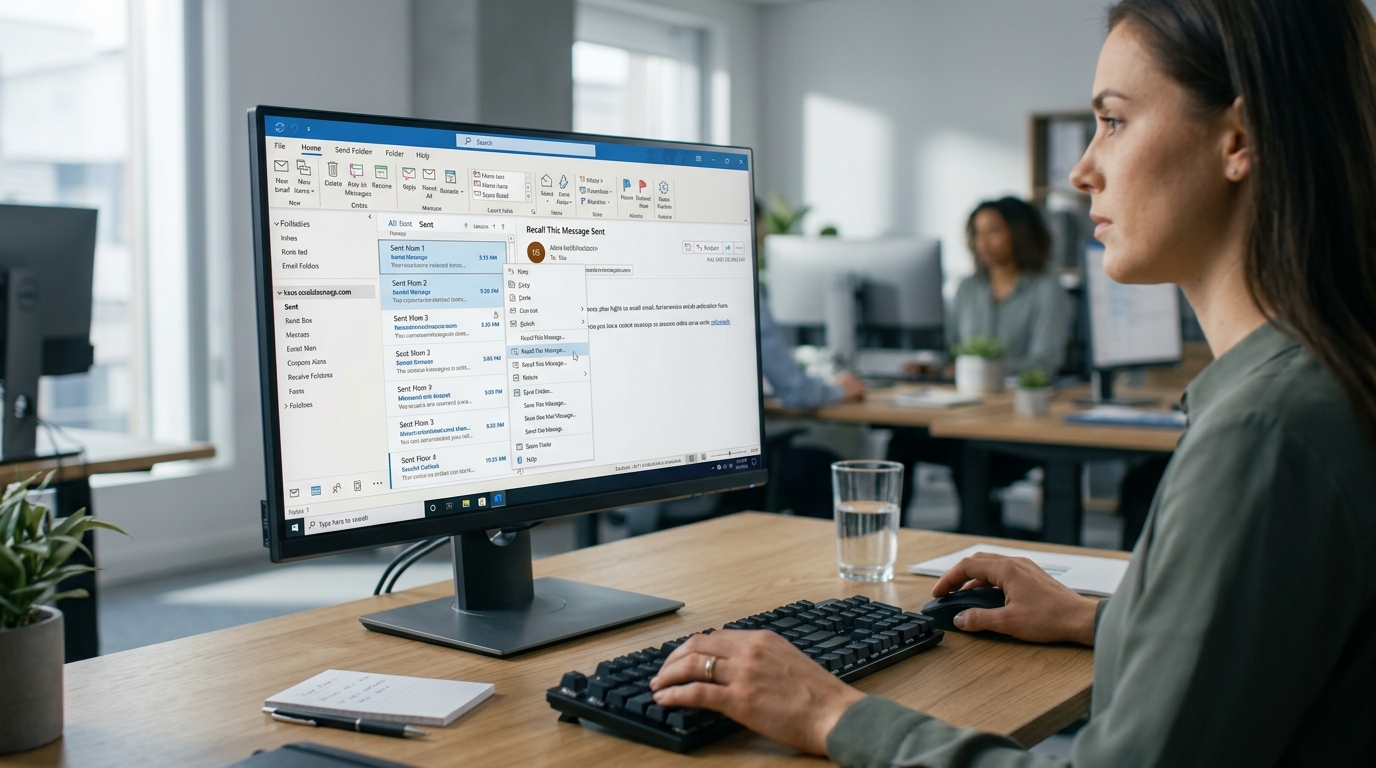
To recall an email in Outlook, open Sent Items, open the message, and select Recall Message. Outlook recall works only in supported Microsoft 365 work or school accounts, usually when you and the recipient are in the same organization and the recipient hasn’t opened the email yet.
Sent an email and instantly wished you hadn’t? Maybe you forgot the attachment, spotted a typo, sent the wrong file, or realized the email went to the wrong coworker. That’s exactly when how do I recall a message in Outlook becomes an important question. The good news is that Outlook can recall or replace certain sent emails. The bad news is that the feature doesn’t work for every account or every recipient. The steps also differ between New Outlook, Classic Outlook, and Outlook.com. In this guide, you’ll learn how to recall an email in Outlook, replace a sent message, check whether the recall worked, and understand what to do when the recall option isn’t available. You’ll also learn why Outlook recall sometimes fails and how Undo Send can help prevent the problem in the first place.
How Do I Recall a Message in Outlook?
If you’re using New Outlook for Windows with a supported Microsoft 365 work or school account, you can recall a sent message from Sent Items. Microsoft says recall is available when both you and the recipient use Microsoft 365 work or school accounts in the same organization and the recipient hasn’t opened the message.
Steps to recall an email:
- Open Outlook.
- Go to Sent Items.
- Double-click the email you want to recall.
- Select Recall Message.
- Confirm the recall.
- Wait for the Message Recall Report.
- Check the report to see whether the recall succeeded, is pending, or failed.
If you don’t see Recall Message, your account or Outlook setup may not support the feature.
How to Recall an Email in New Outlook
New Outlook has a straightforward recall process.
- Open Sent Items.
- Double-click the message you want to recall.
- Select Recall Message from the message options.
- Confirm by selecting OK.
- Check your inbox for the Message Recall Report.
The report tells you whether Outlook successfully recalled the message, whether the request is still pending, or whether the recall failed.
Important
Recall isn’t the same as deleting an email from your own Sent Items. Outlook attempts to retrieve the message from the recipient’s mailbox, and the conditions for recall must be met.
How to Recall an Email in Classic Outlook
If you’re using Classic Outlook for Windows, the steps are slightly different.
- Open Sent Items.
- Double-click the email you want to recall.
- Select the Message tab.
- Choose Actions.
- Select Recall This Message.
- Choose what you want Outlook to do.
- Select OK.
You can choose:
- Delete unread copies of this message
- Delete unread copies and replace with a new message
If you want to send a corrected version, choose the replacement option and edit the email before sending it again.
Tip: In Classic Outlook, you need to open the message in its own window. Simply selecting the email in the reading pane won’t give you the recall option.
How to Recall and Replace an Email in Outlook
Made a mistake but want to send the corrected version immediately?
Use the replacement option when available.
Choose:
Delete unread copies and replace with a new message
Outlook will open the original email so you can correct it. For example, you can:
- Add a forgotten attachment
- Fix a typo
- Correct a date
- Change incorrect information
- Remove an accidental sentence
- Update the recipient list
After editing, send the replacement message. Outlook will attempt to remove the unread original and replace it with the updated version.
Can You Recall an Email After It Has Been Read?
Usually, you shouldn’t expect Outlook recall to remove a message that the recipient has already opened.
The recall feature is designed to retrieve messages that haven’t been opened yet. If the recipient has already read the email, the recall may not accomplish what you want.
If the message contains an important mistake, the safest approach is to send a correction.
For example:
Please disregard my previous email. I noticed an error and have sent the corrected information below.
Can You Recall an Email Sent to Gmail?
No, you generally can’t use Outlook’s message recall to pull an email back from a Gmail recipient.
Traditional Outlook recall requires supported Microsoft 365 work or school accounts and specific organizational conditions. Personal accounts such as Gmail and Outlook.com don’t support traditional message recall.
If you accidentally emailed someone using Gmail, your best option is to send a quick correction and ask them to disregard the original email.
Can You Recall an Email in Outlook.com?
If you’re using a personal Outlook.com, Hotmail.com, Live.com, or MSN.com account, you can’t recall a message after it has been sent.
Microsoft recommends using Undo Send instead. Outlook.com can delay sending by 5 or 10 seconds, giving you a short window to cancel the message before it actually leaves.
Turn on Undo Send in Outlook.com
- Open Settings.
- Go to Mail.
- Select Compose and reply.
- Find Undo send.
- Choose a delay of 5 or 10 seconds.
- Select Save.
After sending an email, you’ll see an Undo send option during the selected delay period.
Can You Recall an Email in Outlook on the Web?
For Outlook on the web with a supported Microsoft 365 work or school account, message recall is available when the required conditions are met.
Open Sent Items, open the message, select Recall Message, and confirm the request. You’ll receive a Message Recall Report showing the result.
Don’t confuse this with personal Outlook.com. Personal Outlook.com accounts don’t have traditional message recall.
Can You Recall an Email From Outlook on iPhone or Android?
No. Microsoft currently says the Outlook mobile apps for iOS and Android don’t support undoing or recalling a sent email.
If you’ve already sent the message from your phone, your practical options are to:
- Send a correction
- Ask the recipient to disregard the first email
- Contact the recipient directly if the mistake is urgent
For future emails, using a send-delay feature where available can give you time to catch mistakes.
Why Is the Recall Message Option Missing?
If you can’t find Recall Message, there may be a simple reason.
Common causes include:
- You’re using an unsupported account.
- The recipient is outside your organization.
- You’re using a personal Outlook.com account.
- Your organization doesn’t support the feature.
- You’re using an Outlook version with different recall options.
- The message was sent through an account that doesn’t meet the recall requirements.
- You’re using Classic Outlook but haven’t opened the email in its own window.
Microsoft notes that if Recall This Message isn’t available in Classic Outlook, you may not have an Exchange account or the feature may not be available within your organization.
How Do You Know if an Outlook Recall Worked?
Outlook can send you a Message Recall Report after you submit the recall request.
The report can show whether the recall:
- Succeeded
- Failed
- Is pending
Open the report to check the status of the recall for the recipient or recipients.
Don’t assume the email was deleted simply because you clicked Recall Message. Always check the report when the result matters.
What Should You Do If Outlook Recall Fails?
Don’t panic. A failed recall doesn’t mean you’re out of options.
Send a short correction instead.
For a work email:
Please disregard my previous email. I noticed an error and have attached the corrected version here.
For a wrong recipient:
Please disregard my previous email. It was sent to you by mistake. I apologize for the confusion.
For a missing attachment:
Sorry, I forgot to include the attachment in my previous email. Please find the correct file attached here.
If the original email contained confidential information, follow your organization’s security or privacy procedures rather than relying only on the recall feature.
Outlook Recall vs. Undo Send
These features sound similar, but they work differently.
| Feature | Recall Message | Undo Send |
|---|---|---|
| Works after sending | Yes, when supported | No, it delays sending |
| Removes an already sent email | Sometimes | Not applicable |
| Requires specific account conditions | Yes | Depends on Outlook version |
| Works with Gmail recipients | No | Only useful before sending completes |
| Useful for catching mistakes | Yes | Yes |
| Works on Outlook mobile | No | Varies by platform |
The key difference is simple:
Recall tries to retrieve a message after it has been sent. Undo Send gives you a short window to stop the message before it is sent.
For personal Outlook.com accounts, Microsoft specifically recommends Undo Send because traditional recall isn’t available.
FAQs
How do I recall a message in Outlook?
Open Sent Items, open the sent email, select Recall Message, and confirm. The feature only works under specific account and recipient conditions.
Can I recall an Outlook email after 10 minutes?
There isn’t a simple 10-minute recall limit. Whether recall works depends more on the account setup, recipient, organization, and whether the recipient has opened the email.
Can I recall an email after it has been opened?
You generally shouldn’t expect a recall to remove an email that the recipient has already opened.
Can I recall an email sent to Gmail?
No. Traditional Outlook message recall isn’t designed to retrieve emails from Gmail accounts.
Why can’t I see Recall Message in Outlook?
Your account, Outlook version, recipient, or organization may not support the recall feature. Personal Outlook.com accounts also don’t support traditional message recall.
Can I recall an email from Outlook on my phone?
Microsoft currently says Outlook for iOS and Android doesn’t support recalling a sent email.
Can I replace an email after recalling it?
Yes. In supported Outlook versions, choose Delete unread copies and replace with a new message, then edit and send the corrected email.
Does Outlook tell me whether the recall worked?
Yes. Outlook can send a Message Recall Report showing whether the request succeeded, failed, or is pending.
Is Outlook recall guaranteed?
No. Recall depends on specific account and recipient conditions, so you shouldn’t treat it as a guaranteed way to erase a sent email.
Conclusion
Knowing how to recall a message in Outlook can save you from an embarrassing typo, missing attachment, or accidental email. If you’re using a supported Microsoft 365 work or school account, open Sent Items, open the message, and choose Recall Message. Just remember that recall has limitations and isn’t available for every Outlook account.
If you’re using a personal Outlook.com account or Outlook mobile, you’ll need another approach, such as Undo Send or a quick correction email. The smartest move is to check the recall report rather than assuming it worked. And for future emails, a short sending delay can give you those precious few seconds to catch a mistake before it becomes someone else’s notification.